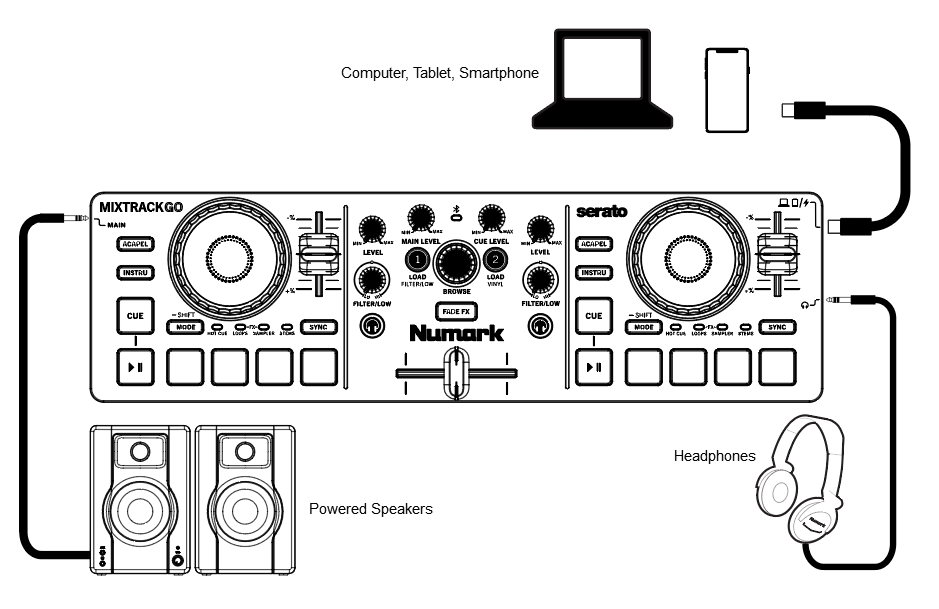
Use the included USB-C cable to connect MixTrack Go to an available USB port on your computer, or directly to your smartphone or tablet.
For improved battery life on mobile devices, use wireless charging if available for your device, or connect to a powered USB hub that can provide both power to MixTrack Go and connection with your device.
Connect output devices (headphones, optional speakers, etc.) to MixTrack Go.
Open the software and start DJ’ing!
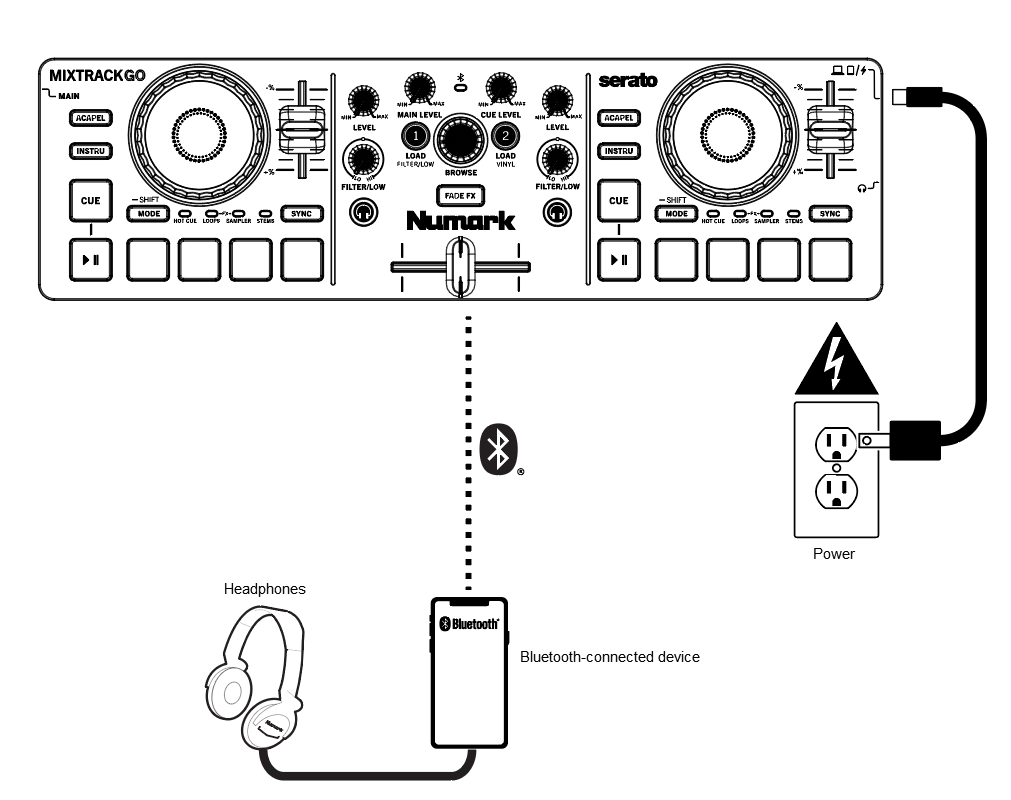
Wirelessly Connecting MixTrack Go with Bluetooth MIDI
When MixTrack Go has powered on, it will enter Bluetooth MIDI pairing mode. The Bluetooth LED on MixTrack Go will flash to indicate it is ready to pair.
Open your DJ app on your smartphone or tablet, go to Settings > MIDI Devices > Bluetooth MIDI Devices and select Numark MixTrack Go. Once connected, the Bluetooth LED will remain lit and you can start DJ'ing!
While Bluetooth control is active, MixTrack Go's audio outputs will be disabled. Connect any speakers or headphones to your smartphone or tablet.