
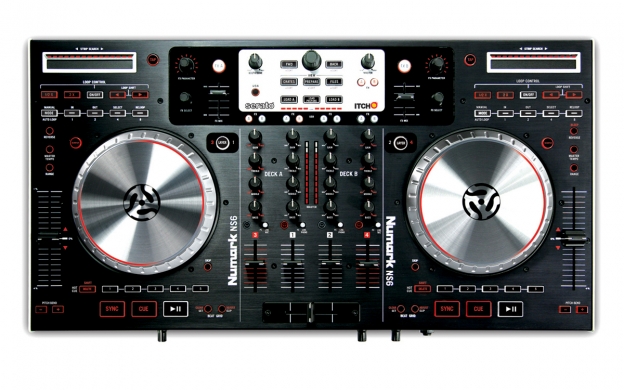
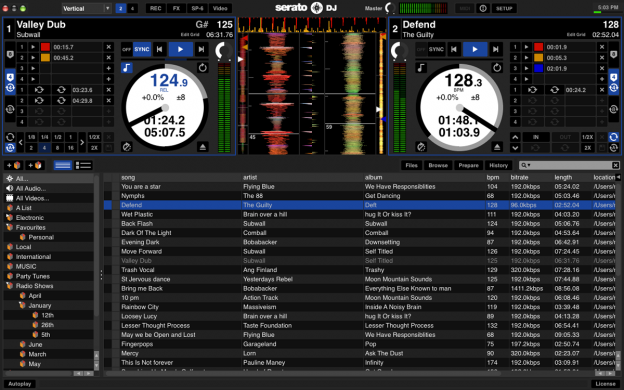


"This, dear reader, is about as far away from "toy" as a controller gets ... the NS6 is a beast."
- DJWorx.com
The Power of Four
Rock-solid and portable, analog and digital, practical and powerful. With NS6, groundbreaking technology blends with Numark's decades of expertise in engineering cutting-edge DJ gear to gives you one of the world's most advanced controllers. Designed in partnership with Serato, NS6 delivers incredible 4-deck performance with the groundbreaking capabilities of Serato DJ software. NS6 comes ready to control four channels of software plus external sources. Connect and mix CD players, turntables, MP3 players, and more right along side Serato DJ. NS6 is ready to go wherever you want to take it — both physically and musically.
High-Resolution Control
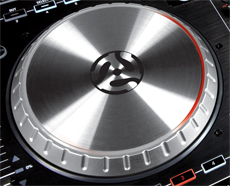 NS6’s aluminum platters are supported by the same ultra-high-resolution MIDI as the award-winning NS7 and the all-new NS7II—3600 ticks of resolution per rotation. It’s the tightest response ever produced in a DJ controller. When combined with NS6’s automatically adjusted platter sensitivity the result is ultra-precise, high definition turntable control. Beyond the platters, NS6 keeps your mix super tight with high-resolution 14-bit MIDI control throughout. Designed to work flawlessly with Serato DJ, NS6 erases the line between hardware and software. Bi-color LEDs also surround each platter, providing both an indication of the deck in control and also a Deck’s playback status, and effects can be instantly accessed by channel.
“Well built, nicely laid out, gorgeous jogwheel performance, true pro feature set, great sound quality, lots of flexibility ... a stylish, fun and professional DJing solution right from the box.” -Digital DJ Tips
Independent Mixer
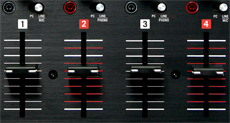
At the heart of NS6 is a four-channel mixer that can operate standalone, which means you can mix up to four external sources without even turning your computer on. Connect and mix CD players, turntables, MP3 players, or any other external source—you never have to worry about the awkward silence and inevitable moans of an unhappy crowd. Plus, the built-in 24-bit audio interface was engineered without compromise, giving NS6 audiophile-grade circuitry that keeps your mix clean and clear.
Connect Anything
A full range of input and outputs for connecting virtually any device: RCA inputs on each channel and four line-level inputs with two switchable to phono and two switchable to mic. Each of NS6’s four channels has an input selector so you can easily transition between controlling Serato DJ’s four software decks and your external sources. Control Serato one moment; mix in your turntable, iPod, or a mic the next. NS6 makes it possible to grab music from virtually any source and bring it into your mix.
Enhanced Strip Search
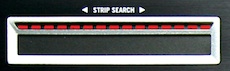 Using just the tip of your finger, you can glide to any point in a track effortlessly, then drop the virtual needle exactly where you want to be. Initially introduced on NS7, Numark’s exclusive Strip Search virtual-needle-drop technology now includes a parallel string of bright red LEDs, so you can tell where the track is just by looking. It’s one less reason to be staring at your computer screen. NS6’s combination of premium features don’t require you to conform to them. They conform to you, empowering you to perform and mix at your highest level. In addition, unlike some imitations, the Strip Search touch strips are positioned intuitively, so you will never hit them accidentally.
“ ... the perfect balance of “serious” size with DJ-friendly portability.” - DJ Tech Tools
FEATURES
- 4-channel mixer and 24-bit audio interface built in
- Built-in professional 24-bit audio interface with balanced XLR outputs
- Touch-sensitive illuminated platters with 3600 ticks of resolution per rotation
- Deck Controls include: Key Lock, Pitch Control, Manual and Instant Looping, Hot Cues, and Beat Grid
- Mixer can operate standalone, with or without your computer
- Operates via standard MIDI, compatible with virtually any DJ software
- Inputs for 4 line, 2 turntables, 2 microphones
- Strip Search™ virtual needle-drop technology
- Mouseless library navigation with view options
- Serato DJ software included
- Dedicated iZotope® effects controls
- Curve-adjustable CP-Pro crossfader
- Channel-assignable effects controls
- Rugged all-metal construction
INCLUDES
- NS6 Controller
- Serato DJ Software & Driver Discs
- Power Supply
- USB Cable
- Quickstart Guide
- Safety & Warranty Manual
Hardware
- Wheels: 3600 points of resolution per rotation, 6" Dual Zone Touch-sensitive metal wheel w/ non-conductive rubberized outer ring
- Total Controls: 140 (knobs, sliders, wheels, buttons, switches)
- Unique MIDI Messages: 214
- Weight: 13.95 lbs. (6.33 kg)
- Dimensions (W x D x H): 23.8" x 13.4" x 2.5" (603 mm x 340 mm x 64 mm)
Audio Inputs
- 2 Mic (1/4" balanced)
- 4 Stereo line (RCA), 2 w/ phono preamp
Audio Outputs
- Master (Stereo XLRs)
- Master (Stereo RCAs)
- Booth (Stereo RCAs)
- Headphone (Stereo 1/4" and stereo 1/8")
Analog SNR (Full Signal Path)
- Balanced Outputs (Stereo XLR: Master): > 99 dB (A-weighted)
- Unbalanced Outputs (Stereo RCA: Master and Booth): > 98 dB (A-weighted)
THD + N
- Balanced Outputs (Stereo XLR: Master): < 0.005% (A-weighted)
- Unbalanced Outputs (Stereo RCA: Master and Booth): < 0.005% (A-weighted)
- Headphone Outputs (Stereo: 1/4" and 1/8"): < 0.03% (A-weighted)
Maximum Output
- Balanced Outputs (Stereo XLR: Master): +26.3 dBu into > 1kO
- Unbalanced Outputs (Stereo RCA: Master and Booth): +14.25 dBu into > 1kO
- Headphone Output (Stereo: 1/4" and 1/8"): + 19 dBu into > 32O
- Frequency Response: 25 Hz − 20kHz (+0/-0.5 dB)
Digital
- Sample Rate: 44.1 kHz
- Bit Depth: 24-bit
- MIDI: 14-bit
- Does the NS6 authorize Serato DJ?
- The NS6 comes with license authentication for both Serato ITCH and Serato DJ, Serato's latest professional software release. For users wanting to get the latest version of Serato DJ, you may download it here. In addition, the NS6 works with many other popular digital DJ programs.
- Can I use the NS6 with Traktor?
- Yes you can! We have TSI controller mapping files for Traktor Pro available for download. Please visit www.numarkns6.com/support, and click on Software to download.
- Can I use the NS6 with Virtual DJ?
- Yes you can! We have controller mapping files for Virtual Pro available for download. Please visit www.numarkns6.com/support, and click on Software to download.
- Can I use the V7 and NS7/FX with the ITCH for NS6 software version?
- ITCH for NS6 was created and tested specifically to support the NS6 Controller. It is not intended to be used with other controllers. Note that multiple versions of ITCH can be installed side by side on the same computer.
- It appears that ITCH is not recognizing the NS6 hardware. The software states hardware disconnected in the single deck player. I installed fresh using the disc that came with my NS6. What should I do?
- 1. If you are using a Macintosh:
- 1. Disconnect the USB cable from the NS6.
- 2. Insert the Itch for NS6 installation disc.
- 3. On the installation disk, Control+click ITCH for Numark Installer.mpkg and choose Show Package Contents.
- 4. In the window that opens, navigate to Contents > Packages.
- 5. Double-click Numark_NS6_midi.pkg to install the MIDI driver. The installer will force you restart when complete.
- 6. Relaunch ITCH for NS6. The NS6 should now be recognized.
- 2. Is the USB LED ON in the middle of NS6? If NO...
- 1. Remove the USB cable. Turn off the NS6, wait 5 seconds, then turn it back on. Wait 5 more seconds, then reattach the USB cable. Relaunch the ITCH software.
- 2. The driver may not have installed properly (this is very rare). Try running the installer disc again to repair the drivers. Make sure you restart your computer after the reinstallation.
- 3. Does the Numark NS6 USB Audio Panel state that it's connected? If NO...
- 1. Reinstall using ITCH Disc (as above). Also try a second USB cable or USB port on your Computer.
- 4. On the Macintosh, open the Audio MIDI Setup utility, and view the Audio tab. Check that a Numark USB Audio Device is present in the audio device list on the left side. If NO...
- 1. Reinstall using ITCH Disc (as above). Also try a second USB cable or USB port on your Computer.
- 5. On the Macintosh, open the Audio MIDI Setup utility. View the MIDI tab. Is a Numark USB Audio Device device present and highlighted in MIDI Window? If NO...
- 1. Check for a non-highlighted Numark USB Audio Device.
- 2. Disconnect the USB cable from the NS6. Click the device icon to select it.
- 3. Click Remove Device option above.
- 4. Then reconnect USB and see if the device reappears in the MIDI window.
- 5. If so. Launch ITCH again, and check its status. If not, Run the ITCH installer Disk again to reinstall drivers. Restart the computer when finished.
- 1. Connect the NS6 to the computer, and verify that USB LED is lit.
- 2. Download and install the free Mac OSX utility MIDI Monitor.
- 3. Then launch the MIDI Monitor application.
- 4. Open Sources and make sure MIDI sources is checked. (this should happen by default)
- 5. Press buttons, move faders and turn platters on the NS6. You should see data sent from the NS6 to the MIDI monitor window indicating correct communication with the computer.
- 6. Close MIDI Monitor.
- 7. Open ITCH for NS6. The controller should now be recognized.
- Why is my Cross Fader functioning the opposite of my Crossfader Assign switches on the front of the NS6?
- This can occur if you have run older versions of ITCH for NS7 or V7 controllers. Those older versions have a soft setting in the Setup menu to Reverse the crossfader. If this was checked in the older version, that background setting may have been adopted by the newly installed NS6 version. To cure this permanently, open the older version and change the setting to normal. Or, simply use the opposite settings for the NS6 assign switches. This will not affect stability or crossfader performance.
- Why are the platters touch so sensitive after first booting the hardware/software?
- The NS6 platters require a few touches by the user in order to calibrate to their environment. After power up and start of ITCH, always tap the platters a few times to set them and your ready to rock.
- Why do the platters suddenly stop responding to touch in Scratch mode?
- Check to make sure your NS6 is on a solid surface. Surfaces like thick carpeting may cause the touch circuit to become less sensitive.
- The SKIP function is not working. What should I do?
- SKIP requires BEAT GRID setting to be ON, since it needs a grid reference in order to stay in tempo. Engage BEAT GRID in the Setup menu.
- The AUTO Loop function is not working. What should I do?
- AUTO Loops requires a BPM to be present on the song being played. Check to see if the track on deck has a set BPM. It not, you can use the TAP function to enter one quickly.
- Does ITCH for NS6 feature the Instant Doubles function found in the NS7 and V7 version?
- Because of the complexities of a 4 Deck solution, the Instant Doubles feature is not offered in the ITCH for NS6 version of the software. At this time. Stay tuned.
- No audio is being played out of ITCH. The waveforms are moving, but are grayed out. What should I do?
- Out of the box, the PC/Line switches above each line fader are set to Line/Phono for external instruments. Simply toggle these switches to PC and the audio will pass form ITCH software (with colored waveforms).
- I use Virtual DJ. What scratch sensitivity should I set when using the NS6?
- We recommend setting the Scratch Sensitivity to 50% when using Virtual DJ with the NS6.
- How do I update to the latest NS6 Firmware?
- The first NS6 units will ship with firmware version 1.07. While this version is very stable, by the time of release, a new firmware version (v1.13) will be available which improves the functionality of the LED lights on the controller. Customers can update to this latest firmware right within ITCH 1.8.
- 1. Launch ITCH for NS6.
- 2. Select the Setup menu and choose the Hardware tab. This window will indicate that a newer firmware version is available.
- 3. Follow the prompts.
- 4. After the update process is completed, Restart ITCH and power Cycle NS6.
- The first NS6 units will ship with firmware version 1.07. While this version is very stable, by the time of release, a new firmware version (v1.13) will be available which improves the functionality of the LED lights on the controller. Customers can update to this latest firmware right within ITCH 1.8.
MINIMUM SYSTEM REQUIREMENTS
All Systems
- 1024 x 768 screen resolution
- Available USB 2.0 port
- Available Hard disk space for music
Mac OS X 10.6 - 10.14
32-bit
- Intel 2.0 GHz Core 2 Duo
- 2 GB RAM
- 1280 x 720 display
64-bit
- Intel 2.4 GHz Core 2 Duo
- 4 GB RAM
- 1280 x 720 display
Windows 7*
32-bit
- Intel 2.0 GHz Core 2 Duo
- 2 GB RAM
- 1280 x 720 display
64-bit
- Intel 2.4 GHz Core 2 Duo
- 4 GB RAM
- 1280 x 720 display
- * Note: AMD processors are not supported by Serato
Windows 8*
32-bit
- Intel 2.0 GHz Core 2 Duo
- 2 GB RAM
- 1280 x 720 display
64-bit
- Intel 2.4 GHz Core 2 Duo
- 4 GB RAM
- 1280 x 720 display
- * Note: AMD processors are not supported by Serato


